


- Published on
Building a Sitecore Search API Crawler Source
- Authors

- Name
- Francisco Caicedo Narvaez
- @_Francisco_CN
Overview
Sitecore Search offers two primary crawling strategies. The Web Crawler reads your rendered HTML pages, extracting content via CSS selectors and meta tags. It is fast to set up but fundamentally fragile — it depends on the shape of your markup, breaks when templates change, and can only surface what the browser sees.
The API Crawler takes a different approach. You point it at an HTTP endpoint — in Sitecore XM Cloud, that means the Experience Edge GraphQL API — and it calls that endpoint directly to fetch structured content data. The search documents it produces contain exactly the fields you specify, shaped exactly how you want them. No parsing, no brittle selectors, no accidental inclusion of navigation text.
The result is a search index built from your content's canonical source of truth: the Sitecore item database. Adding a field to search results is a two-line change in your GraphQL query, not a refactor of your frontend markup.
The pipeline looks like this:
XM Cloud (item DB) → Experience Edge GraphQL → API Crawler → Search Index
In the example that follows, I build an API Crawler source for a Real Estate directory — a real-world implementation from a Sitecore XM Cloud project.
Architecture: The Two-File Pattern
For the API Crawler source I follow a two-file convention
| File | Role |
|---|---|
realestate-source.graphql.js | Exports a GraphQL query string. Defines what to fetch from Experience Edge: templates, paths, fields. Pasted into the Sitecore Search UI as the crawler's request body. |
realestate-source-extractor.js | Exports an extract(request, response) function. Defines how to transform the raw response into an array of search documents. Also pasted into the Sitecore Search UI. |
It is good idea to keep both files version-controlled alongside your frontend code, it means the shape of your search index is always reviewable in pull requests and rollback-safe with a
git revert.
Step 1 — Write the GraphQL Query
The GraphQL query runs against your Sitecore Experience Edge endpoint and returns the raw item data that the extractor will transform. Start by identifying two key pieces of information in Sitecore: the template ID for the content type you want to index, and the item path ID that scopes the search to the right branch of your content tree.
Finding IDs in Sitecore
Open the Content Editor and navigate to your template definition or content item. The item ID appears in the bottom status bar, e.g.
{37DF6819-BAE5-41C3-8E3F-C176B5176328}. Copy it with the curly braces.
The query for the Real Estate source uses an AND filter combining both conditions: only items that match the realestate template and live under the realestate content path.
# realestate-source.graphql.js
# GraphQL query to fetch realestate pages from Sitecore
# Used directly in Sitecore Search API Crawler source configuration

query ($after: String) {
  search(
    first: 1000
    after: $after
    where: {
      AND: [
        { name: "_templates", value: "{37DF6819-BAE5-41C3-8E3F-C176B5176328}", operator: CONTAINS }
        { name: "_path", value: "{9C9B87E8-5702-4CCB-BF55-77763D7632EF}", operator: CONTAINS }
      ]
    }
  ) {
    pageInfo {
      hasNext
      endCursor
    }
    results {
      id
      name
      url {
        path
      }
      fullAddress: field(name: "PageAddress") {
        value
      }
      image: field(name: "PageImage") {
        jsonValue
      }
      tags: field(name: "PageTags") {
        jsonValue
      }
    }
  }
}
Key query decisions explained:
first: 1000— Fetches up to 1000 items per crawl. The$aftercursor variable andpageInfo.hasNextare already included so pagination can be added later without restructuring the query. See paginating Experience Edge results for the full pagination pattern._templateswithCONTAINS— TheCONTAINSoperator matches items that inherit from the template, not just direct instances. Items built on child templates are included automatically.Field aliases —
fullAddress: field(name: "PageAddress")renames the raw Sitecore field to a semantically meaningful alias in the response. Your extractor readsitem.fullAddress.valuerather than parsing a field namedPageAddress.jsonValuevsvalue— Simple text fields usevalue(returns a string). Complex fields like images and multilists usejsonValue(returns a structured object withsrc,alt, item references, etc.).
Step 2 — Format the Request Body
The Sitecore Search API Crawler expects the request to be configured as a raw HTTP POST body. GraphQL APIs communicate over HTTP POST with a JSON body containing a query string and an optional variables object. The query from Step 1 needs to be serialized into this format before it can be pasted into the Sitecore Search CEC.
Serialization
Serialize the query: take the query string, replace all newlines with
\n, escape any double quotes within field name values, then wrap the result in{"query": "...", "variables": {"after": null}}.
The output looks like this:
{
  "query": "query ($after: String) {\n    search(\n      first: 1000\n      after: $after\n      where: {\n        AND: [\n          {\n            name: \"_templates\"\n            value: \"{37DF6819-BAE5-41C3-8E3F-C176B5176328}\"\n            operator: CONTAINS\n          }\n          ...\n        ]\n      }\n    ) { ... }\n  }",
  "variables": { "after": null }
}
Step 3 — Write the Document Extractor
The extractor is a plain JavaScript function that Sitecore Search evaluates during each crawl cycle. It receives the raw HTTP response from your GraphQL endpoint and must return an array of document objects — one object per search document to index.
The function signature is fixed: function extract(request, response). Sitecore Search calls it with the crawler's outgoing request object and the API's response. The actual item data lives at response.body.data.search.results, matching the shape of the GraphQL response you defined in Step 1.
For full reference on what is available inside the extractor, see the JavaScript document extractor reference.
// realestate-source-extractor.js
// Called by Sitecore Search once per crawl cycle.
// Returns an array — one element per indexed search document.
function extract(request, response) {
  const data = response.body?.data?.search?.results
  const realestate = []

  if (data && Array.isArray(data)) {
    data.forEach(function (item) {
      if (!item) return

      realestate.push({
        id: item?.id,
        type: 'realestate',
        page_type: 'realestate',
        name: item?.name || '',
        realestate_name: item?.displayName || item?.name || '',
        realestate_address: item?.fullAddress?.value || '',
        realestate_url: item?.url?.path || '',
        realestate_image_url: item?.image?.jsonValue?.value?.src || '',
        realestate_image_alt_text: item?.image?.jsonValue?.value?.alt || '',
        realestate_tags: (item?.tags?.jsonValue || [])
          .map((tag) => tag?.displayName)
          .filter(Boolean),
      })
    })
  }

  return realestate
}
Field mapping reference
Every property pushed onto the realestate array becomes a field in the indexed document:
| Index Field | GraphQL Source | Notes |
|---|---|---|
id | item.id | Required — Sitecore Search uses this as the document key. |
type | hardcoded | Literal "realestate". Used for type-based filtering in search queries and result widgets. |
realestate_name | item.displayName or item.name | Tries displayName (the CMS-friendly label) before falling back to the system item name. |
realestate_address | item.fullAddress.value | Maps to the PageAddress field via the alias set in the GraphQL query. |
realestate_url | item.url.path | The URL path for linking to the realestate detail page from search results. |
realestate_image_url | item.image.jsonValue.value.src | Image fields return a JSON object; .src is the URL, .alt is the alt text. |
realestate_tags | item.tags.jsonValue | Multilist fields return item references; .map(tag => tag?.displayName).filter(Boolean) extracts each tag's label. |
Extractor constraints
The extractor runs inside a sandboxed JavaScript environment within Sitecore Search. You cannot use
import,require,async/await, or external modules — only vanilla ES5/ES6. The function must be namedextractand must return an array. Keep it entirely self-contained.
Step 4 — Configure the API Crawler in Sitecore Search
With both files ready, create the crawler source inside the Sitecore Search Customer Engagement Console (CEC). This is where the query and extractor are deployed — and where content authors manage crawl schedules and trigger manual re-indexes.
Content Author Guide — Creating the API Crawler Source
- Sign in to the Sitecore Search CEC and select your domain.
- In the left navigation, go to Integrations → Sources, then click Add source.
- Choose API Crawler as the source type and give it a descriptive name, e.g. Real Estate Source.
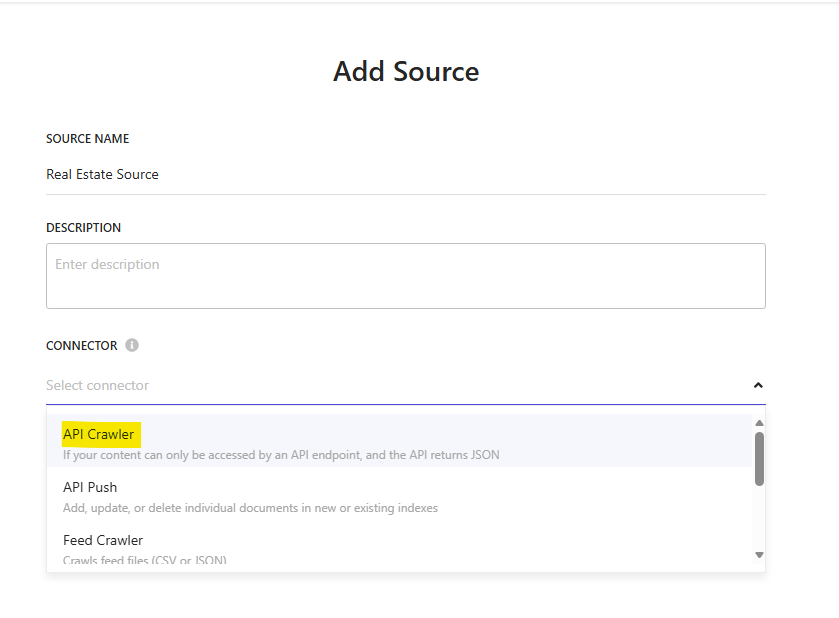
In the Endpoint field, paste your Experience Edge GraphQL URL:
https://edge.sitecorecloud.io/api/graphql/v1Set the HTTP method to POST and add the required header:
sc_apikey→ your Experience Edge API key.In the Request Body field, paste the full contents of
realestate-source.graphql.post.txt— the formatted JSON POST body from Step 2.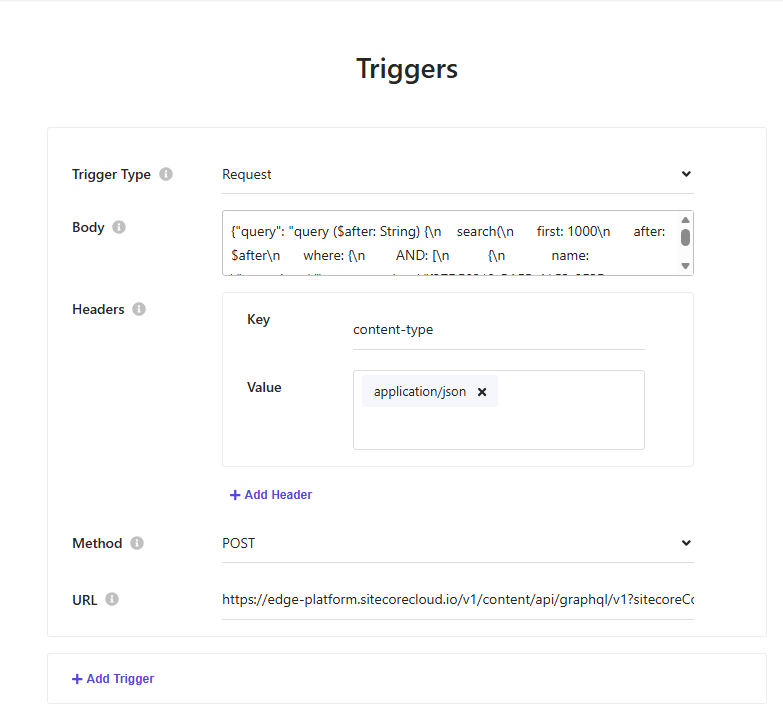
Scroll to the Document Extractor section. Paste the full contents of
realestate-source-extractor.jsinto the editor. See Configuring document extractors for the complete UI walkthrough.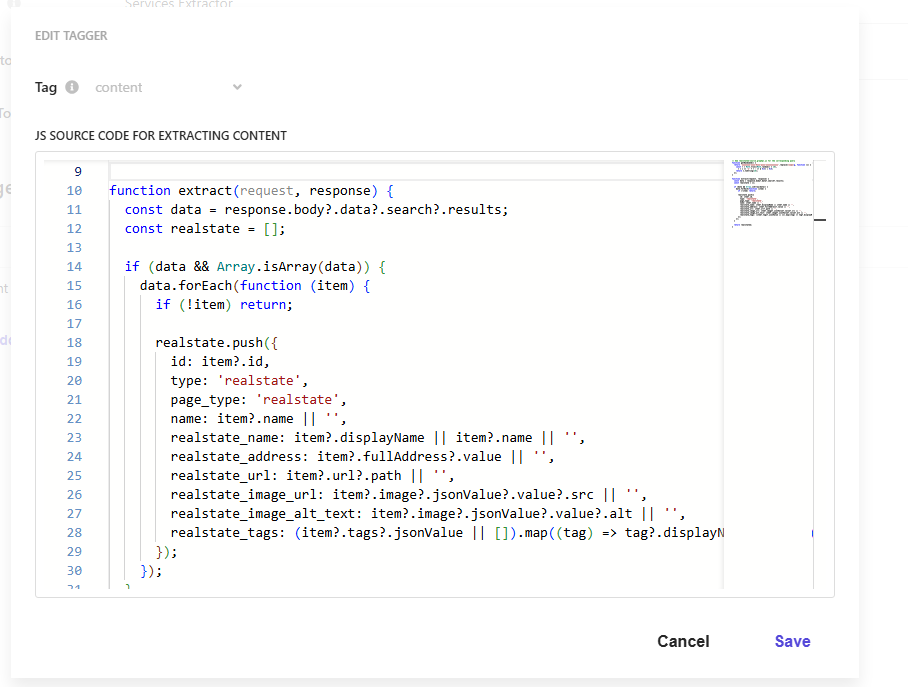
Under Schedule, set the crawl frequency. For content that changes daily, a nightly crawl at off-peak hours works well. For more volatile data, consider every few hours.
Click Save, then Start crawl to trigger the first manual index run.
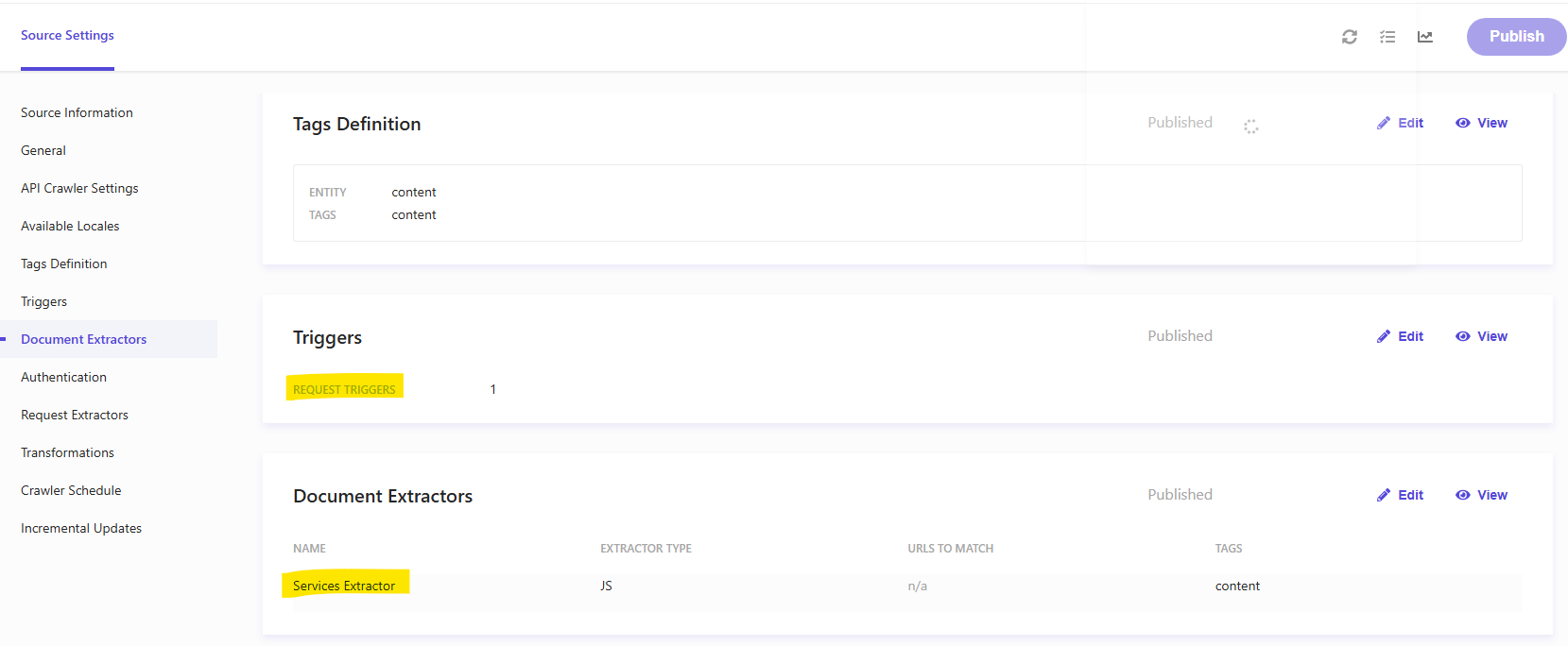
Attribute configuration
After the first crawl completes, navigate to Integrations → Attributes in the CEC. Sitecore Search will have discovered the fields returned by your extractor. For each field, configure the attribute type:
- Text fields used for full-text search (
realestate_name,realestate_address) → Text, indexed for search - Fields used as facet filters (
realestate_tags,type) → Text, faceting enabled - URL and image fields (
realestate_url,realestate_image_url) → Text, not indexed for search
See Add an attribute for the full attribute configuration reference.
Step 5 — Test and Validate the Index
Once the first crawl finishes, verify that documents were indexed correctly before connecting them to a frontend widget.
Check the crawl log
In the CEC, navigate to your source and open the Crawl History tab. Each run shows a status, a document count, and an error log.
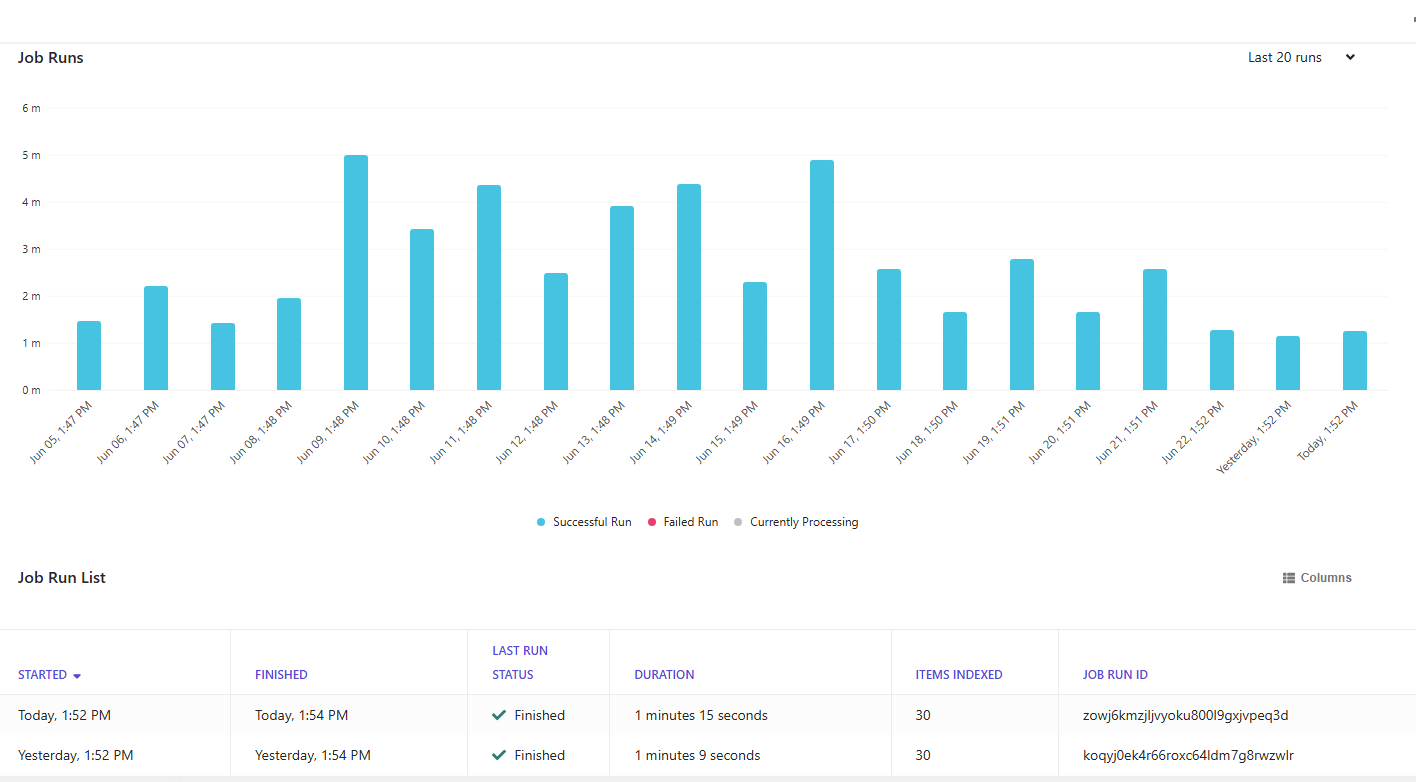
A successful run will show a count matching the number of items returned by your GraphQL query. If the count is zero, check:
- The endpoint URL and
sc_apikeyheader value - That the template and path IDs in the query match your target environment
- The extractor's
extractfunction returns a non-empty array for valid input
On incremental updates
The API Crawler re-indexes all documents on each crawl run — it does not support delta updates out of the box. For sources where content changes infrequently (like a realestate directory), a nightly full re-index is acceptable. For high-churn data, investigate the Sitecore Search push ingestion API as a complement for near-real-time updates between scheduled crawls.
Benefits
The API Crawler's two-file pattern looks like a small upfront investment, but the returns compound:
Precise, predictable indexing — You define every field in the index. No accidental inclusion of navigation text, footers, or CMS metadata.
Change-resilient — Frontend template refactors do not break search. The query reads directly from the item database; search is decoupled from how content is rendered.
Version-controlled — Both files live in your Git repository. The shape of your search index is reviewed in pull requests, tagged in releases, and rollback-safe.
Multisite-ready — A single source can aggregate content from multiple XM Cloud sites using OR path logic, with per-site tagging for scoped search experiences.
Rich field types — GEO attributes, multilist arrays, linked-item traversal — features impossible with an HTML crawler become straightforward when you control the data shape at the GraphQL layer.
Scale with confidence — The pagination cursor (
$after) is already wired in. When your content library grows past 1000 items, adding paginated crawling is a targeted change, not a rewrite.
Conclusion
Sitecore Search's API Crawler is the right tool whenever you need a search index that accurately reflects structured content, not a best-effort scrape of rendered HTML. By keeping the GraphQL query and extractor as first-class source files in your repository, you apply all the benefits of version control, code review, and developer tooling to what has traditionally been a "paste into the admin UI and hope" operation.
Further Reading
- Configure an API Crawler — Step-by-step CEC walkthrough for creating an API Crawler source
- Walkthrough: Configuring an API Crawler — Guided tutorial with screenshots
- Create a JavaScript Document Extractor — Full reference for the extractor function API
- Configuring Document Extractors — How to configure extractors in the CEC
- Attributes Overview — Understanding and configuring index attributes
- The Experience Edge Schema — GraphQL schema reference for Experience Edge